
Overview
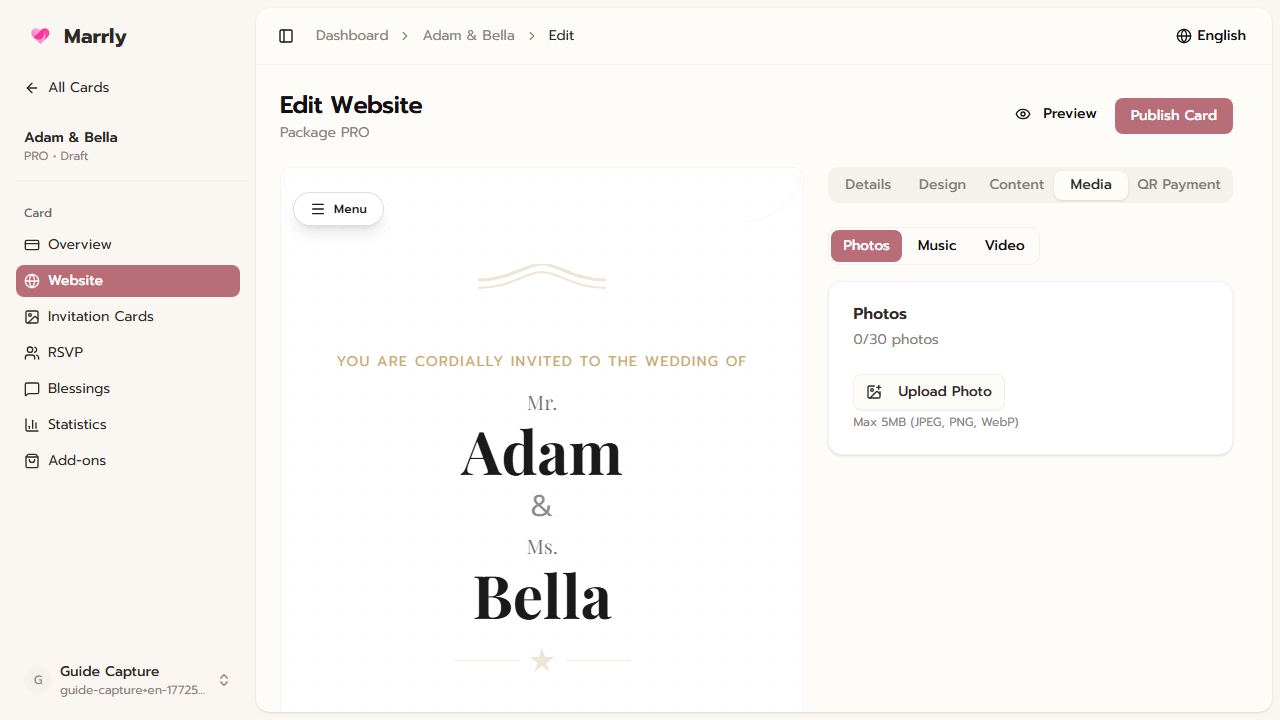
Assets make the website card feel complete. The Media tab groups gallery, background music, and background video, while QR Payment appears as a separate area when the card has access to it.
Quick Facts
Best used when
Use this article when you are preparing the real media assets for publishing or when you need to confirm whether the current package supports music, video, or QR gifting.
Menu path
Dashboard > Select website card > Edit > Media / QR Payment
Estimated time
5 min read
Before You Begin
- Prepare the photos, music, or video files before opening this tab.
- If you need QR gifting, confirm first that the card has access to that feature.
Steps
- 1
Start with the gallery
Use Gallery to upload and manage the main wedding photos. Choose images that represent the event well and still look good on mobile screens.
Media tab example
- 2
Add background music when it improves the experience
Use Music to upload the track and tune playback behavior or volume, then test it in preview so the guest experience feels right.
- 3
Use background video when the package supports it
Video can make the page more premium, but you should still balance the effect against loading speed on guest devices.
- 4
Configure QR Payment when the right is enabled
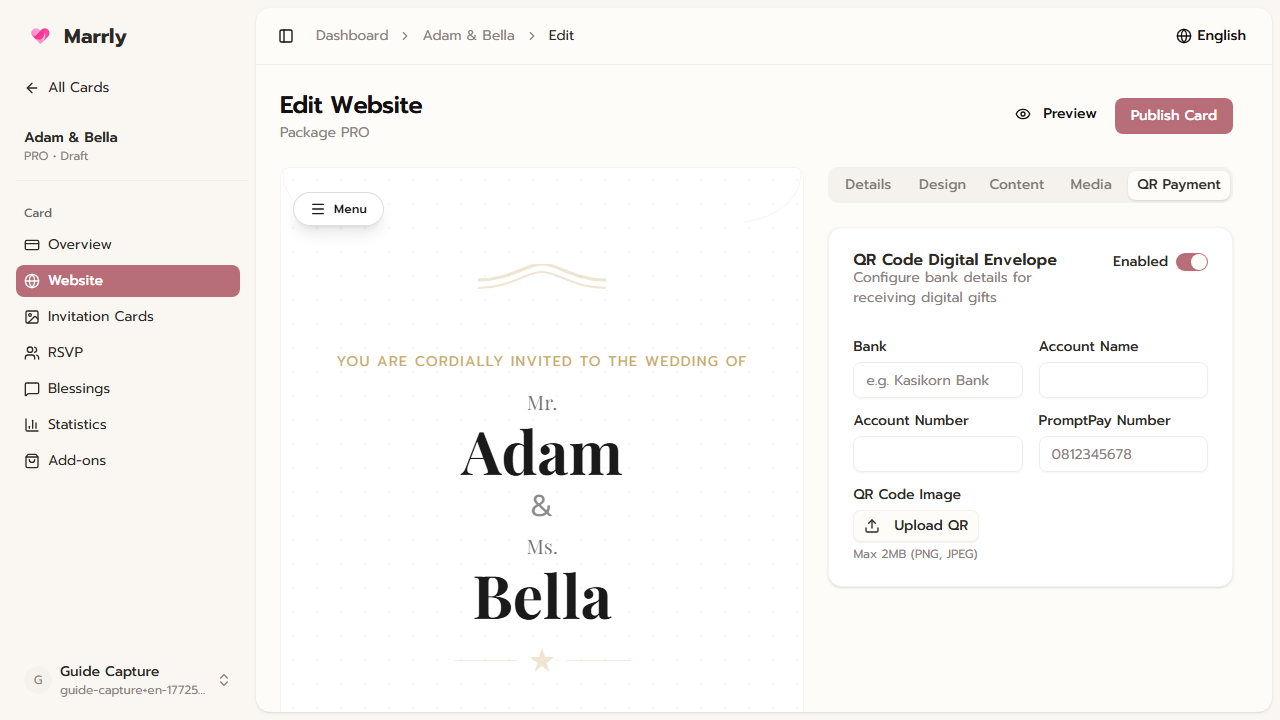
If the card includes QR Payment, Marrly shows a dedicated tab. Review the payment details and test the flow before going live.
QR Payment settings example
Notes
Common Mistakes
Result
You can manage the core media for a website card and know when to use Media versus QR Payment.