
Overview
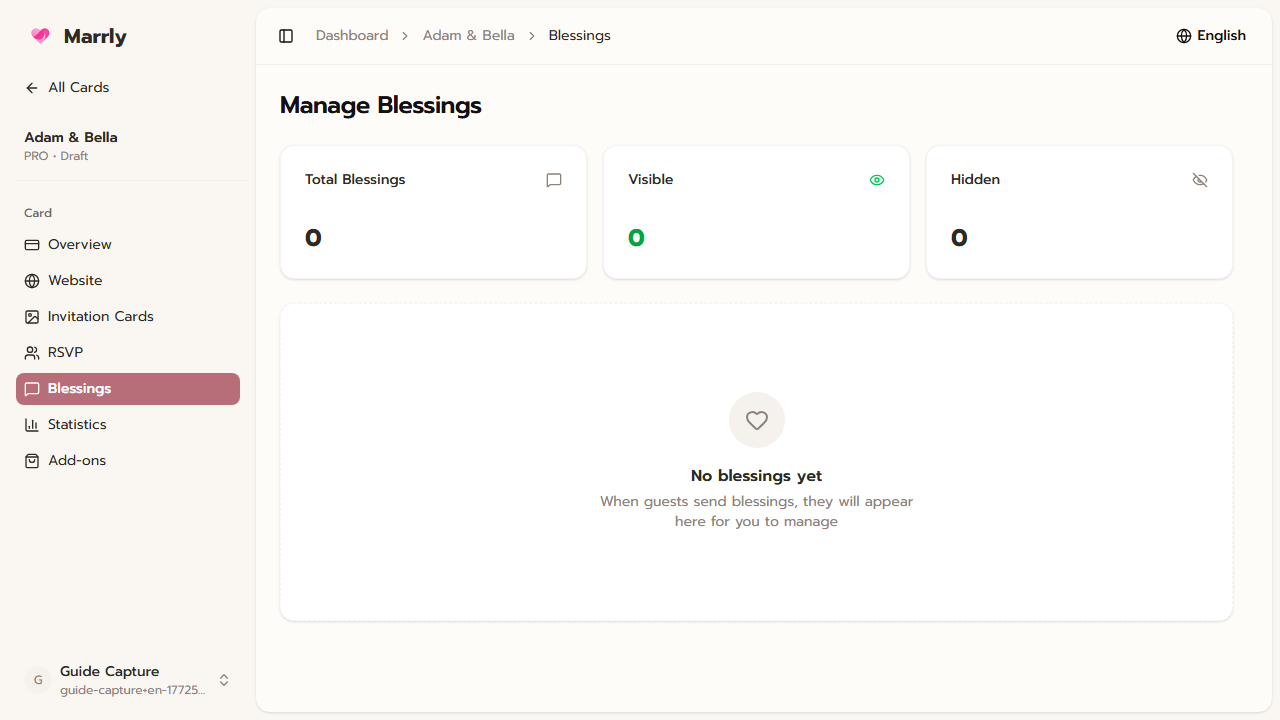
The Blessings menu keeps guest messages in one place. You can read new messages, judge whether they are ready to display, and control what appears on the live card.
Quick Facts
Best used when
Use this article after guests begin sending blessing messages and you need to organize them before showing them publicly.
Menu path
Dashboard > Select card > Blessings
Estimated time
3 min read
Steps
- 1
Open the Blessings page of the card
Start from the correct card, then enter Blessings to review messages for that event only.
- 2
Check new incoming messages
Read the sender name and message body so you can separate messages that are ready to show from those that need review.
- 3
Manage visibility as needed
If your setup supports hiding, deleting, or changing status, use those controls to keep the visible message list appropriate.
Result
You can maintain the quality of guest messages and control what appears on the live card.