
Overview
The Design tab controls the visual direction of the website card, including the chosen theme, styling, and the structure of sections on the live page.
Quick Facts
Best used when
Use this article when the basic content is ready and you want the website to match the mood of the event while showing only the right sections.
Menu path
Dashboard > Select website card > Edit > Design
Estimated time
5 min read
Steps
- 1
Choose a theme that matches the event
In Theme mode, switch themes to fit the wedding atmosphere, such as classic, modern, or destination-inspired styles, and keep preview open while deciding.
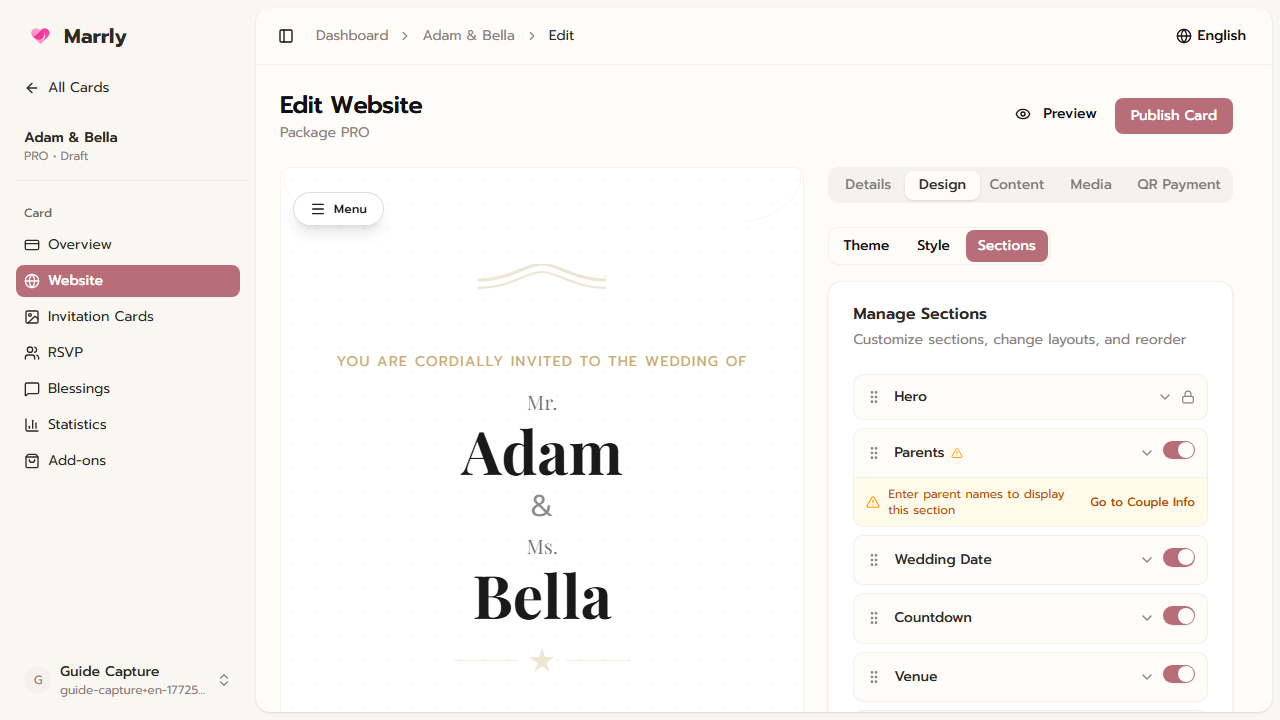
Design tab example
- 2
Tune the style for real use
Use Style mode to adjust spacing, colors, and overall presentation so the website stays readable while still feeling consistent with the chosen theme.
- 3
Enable only the sections that are ready
In Sections mode, keep only the sections that are truly used, such as story, schedule, blessings, RSVP, or QR Payment, so the page does not feel long or unfinished.
Notes
Common Mistakes
Result
You can choose the right theme and control the website-card structure from the Design tab.