
Overview
The Details tab is the data foundation of a website card. It controls the couple names, wedding date, ceremony type, venue, map, and event context. If this area is incomplete, every other area becomes harder to finish correctly.
Quick Facts
Best used when
Use this article when you are entering the real event information for the first time or when names, dates, venue details, or event fields must be corrected before sharing the link.
Menu path
Dashboard > Select website card > Edit > Details
Estimated time
5 min read
Before You Begin
- Prepare the couple names, event date, ceremony type, and venue information.
- If you want to pin the map, have the venue name or coordinates ready before opening the tab.
Steps
- 1
Start with the couple names and event date
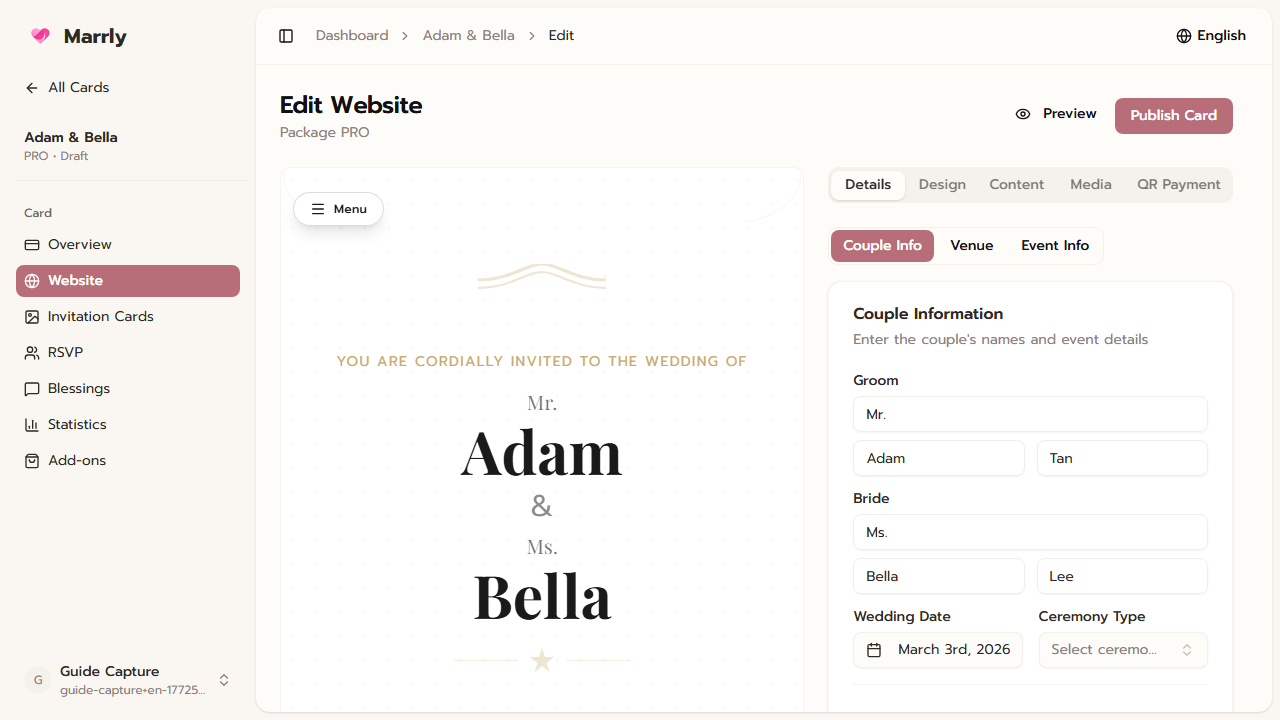
Fill in the titles, first names, last names, and wedding date first because this data appears across multiple parts of the website and preview.
Details tab example
- 2
Set the venue and map
In the Venue area, add the venue name, address, and map location so guests can open navigation from the website card.
- 3
Fill in the Event information
Use the Event section for dress code, event tone, and any extra notes guests should know before attending.
- 4
Show only the sections you really need
Items such as parents, social links, or event information use display toggles, so check that the visible sections match what guests should actually see.
Notes
Common Mistakes
Result
You can manage the core website-card details and know when to edit Couple, Venue, or Event data.