
Overview
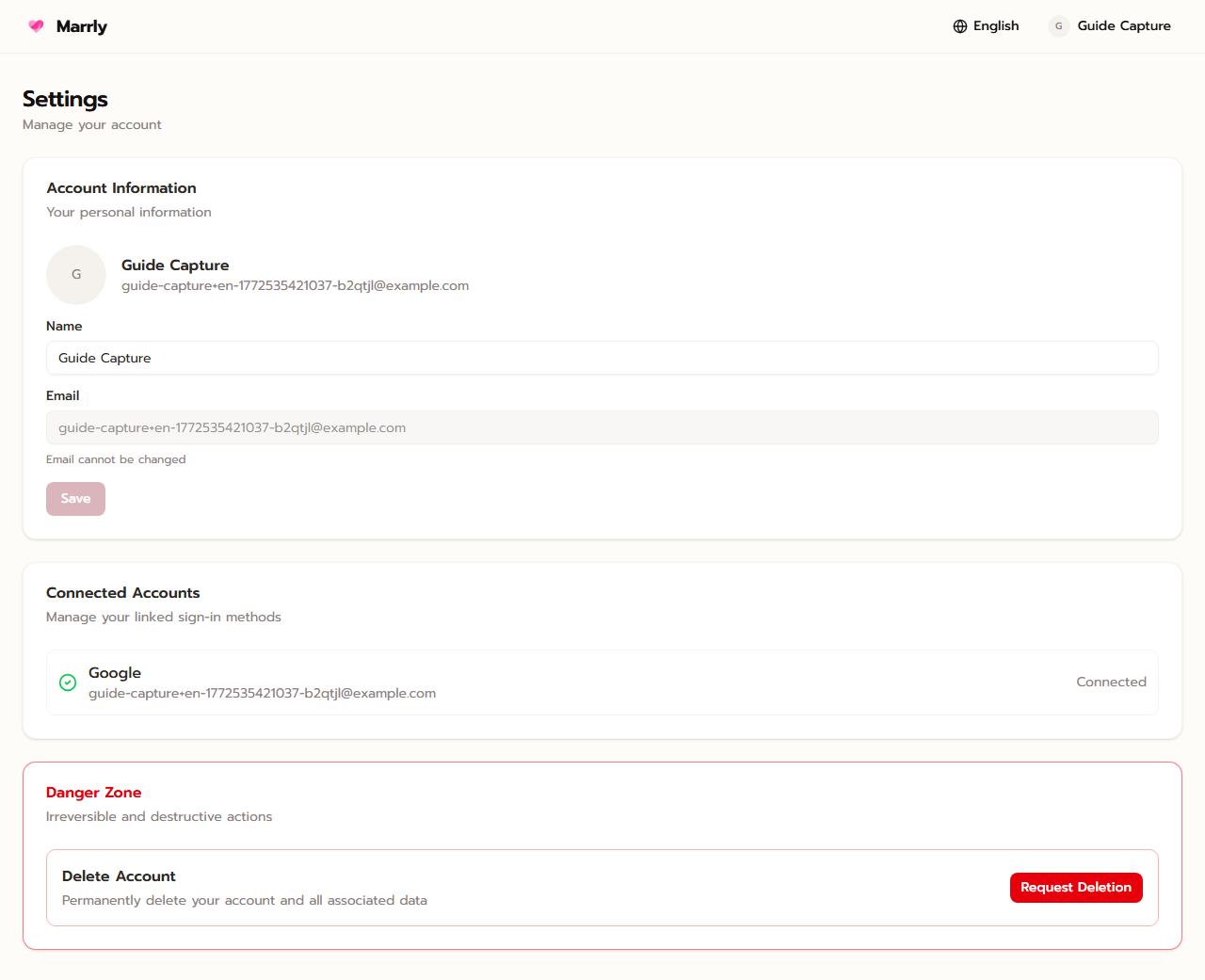
Settings manages account-level details such as the display name, email, and other preferences that are not tied to a specific card. It is the right place to periodically verify who controls the account.
Quick Facts
Best used when
Use this article when you need to change the account name, confirm which account is active, or review the details before handing access to someone else.
Menu path
Dashboard > Settings
Estimated time
3 min read
Steps
- 1
Open Settings from the account menu
This screen sits alongside Billing and manages user-level information instead of card-specific fields.
- 2
Check the name and email linked to the account
Make sure the details match the real account owner so order follow-up and future access are not confusing.
- 3
Update critical information when responsibility changes
If a different person will manage the project, refresh the account details before handing work over.
Notes
Result
You can manage the account profile correctly and understand how account Settings differ from card-specific menus.